

Inside the Future Workday: The Microsoft 365 Admin’s 2026 Toolkit
- 27 nov 2025
- 9 minuten om te lezen
I usually write my blogs in Dutch, but this time I'm making an exception so that everyone can read this blog.
In this blog, I’ll take you on a journey into the daily life of a Microsoft 365 administrator in 2026.
Almost five years ago, I transitioned to the functional (adoption) side of IT and as projects have grown increasingly technical, the admin center has become more familiar to me than ever.
Yet, I’ve never lost sight of my 'adoption roots'. That blend of perspectives helps me translate real-world challenges into practical insights. In this article, I’ll explore the issues I expect will shape the coming year, especially around the rise of Copilot, intelligent automation and modern management and explain how you as an administrator can make the right choices to help employees get the most out of their workday.
For each topic, I outline the question that often comes from the company or directly from a colleague. In the new year, these questions will play a role for us as administrators of the Microsoft 365 environment. I have already written a blog about some of these topics, but in this overview, I list them all: new topics and previously published blogs.
Storage in SharePoint
In recent years, we have transferred more and more data to the cloud, with many of the documents ending up in SharePoint. Due to the lack of an archiving policy, storage in SharePoint is filling up, which means that at some point, we will have to buy more. To prevent this, or to keep growth under control, here are some tips:
The start; Insight into your data The Microsoft 365 dashboard provides a global overview of your SharePoint Storage usage. There are two levels of insight:
For the entire environment
The Usage report in the Microsoft 365 admin portal provides an overview of the space used within SharePoint, as well as a global overview of growth.

For a specific SharePoint Site
You can also gain insight into growth at the site level, but you must be the site administrator to do so. To do this;
Site information
View all site settings
Under Site Collection Administrator
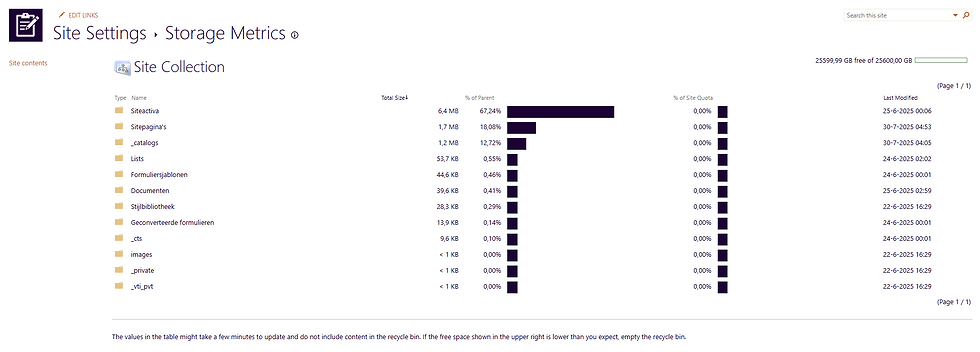
Storage metrics; Here you can see how much storage is in use per document library, and you can also zoom in further. This allows you to see how much data is in a specific folder at the folder level.
Preventing future growth
There are various options you can configure within Microsoft 365 itself to prevent future growth.
In the SharePoint admin center, you can configure version control on newly created sites. Here, you can select a maximum number of versions, or the period you would like the keep the version. Please note that this setting applies to sites created from that moment on. The sooner you configure this setting, the better, in terms of limiting growth.

Version control settings for 'old' (existing) sites
If you want to maximize the number of versions on existing sites, you can configure this on the site itself for each document library. You can do this as follows:
Please note; you need to be a owner of the SharePointsite
Go to the settings (gear in the right corner)
Choice 'Site content'
Behind the document library for which you want to adjust the number of versions, press the three dots
Go for 'settings'
Go for 'Versioning settings'
Under ‘Version count limit’, adjust the number of versions that should be retained to

Please note: this setting limits the maximum number of versions that are retained, but it does not delete older versions (those above this maximum). There are ways to do this with PowerShell, for example, but I have never been particularly happy with them. To delete older versions, I would recommend using a tool such as the one described below.
External tools
Microsoft does not always provide sufficient insight, and in addition to future growth, you often want to do something about the amount of data currently stored in your Microsoft 365 environment.
You could consider cleaning up Microsoft 365 groups and with them all the information stored on the underlying SharePoint site, among other places.
You can also use external tools to gain more insight or set precise settings. I would recommend two tools for this, each with its own specialism:
• If you want to clean up old versions by team/template type, Orchestry is a tool that could help. It is a policy, which means that cleanup actions take place regularly.
• AvePoint Opus can help you clean up or archive certain versions or old data.
Both tools provide even more insight through the use of more extensive dashboarding.
Copilot in a meeting
Using Copilot in your meeting is one of the features that will really make a difference in terms of time savings throughout the day. Copilot is available both during and after the meeting.
Before you can use Copilot in meetings, it is important that your IT partner/department has enabled this. They can do this by adjusting two settings in the Teams admin portal:
1. Allow transcription
2. Allow Copilot, where you have several options:
Enable,
Enable with the requirement that transcripts are always saved
Enable with transcripts saved by default.
After this, an employee can start using Copilot in meetings.
Prior to a meeting, an employee can select the following settings in the meeting settings.
Please note that only meeting organizers, i.e. those who scheduled the meeting, can change these settings by default.
Under ‘Allow Copilot and facilitator’, you have three options:
o Only during the meeting: Copilot and the output are only available during the meeting.
o During and after a meeting; Copilot and the output are also available after the meeting.
o Disabled; this speaks for itself.
During the meeting; Use Copilot
Copilot can also be used during a meeting. This is done by the meeting organizer or, if the settings are correct, by someone from your own organization. There are three ways to use Copilot during a meeting, each with its own characteristics:
1. If you use the Copilot button at the top of the start bar, you can only use Copilot during the meeting; the content is not available afterwards, including Copilot's answers.
Tip: this is very useful if you don't want to make a recording but want to quickly create a summary, for example. Don't forget to copy it.
2. Activate the facilitator with the button. In this case, you can use the facilitator options that I explained earlier in my blog. Please note: if you want the functionalities/answers to be available afterwards, you must enable the transcript.
3. Enable the transcription. This ensures that not only the transcription is available after the meeting, but also Copilot
Retention period for transcripts and recordings
As an administrator, it is also important to consider the retention period for transcripts and recordings. This ensures that employees have enough time to use these recordings/transcripts and Copilot for that purpose, and that data is not stored in your environment for longer than necessary.
You can set the default retention period in the Teams Admin Center. This is the default setting and can always be extended by employees; https://learn.microsoft.com/en-us/microsoftteams/meeting-recording#default-expiration-time
Creating Copilot agents
While there were not many options for managing agents when they were first introduced, this is changing. In the Microsoft 365 admin center, you will now find a separate button with settings specifically for agents.
You can determine the following for the entire environment:
What types of agents can be used in your environment: Microsoft's own, built by your organization, or published by external parties?
Where can agents built with Copilot Studio (Lite) be shared? This limits the ability of “self-built agents” to take on a life of their own.
You can apply policies so that newly created agents are immediately subject to the correct policy rules, such as whether an audit trail must be retained, how to deal with archiving policy, etc.
The settings are still limited, but they are being expanded more and more.

Starting licenses in Microsoft 365
Did you know that employees with their business (managed) account have the option to request licenses or start a trial? That's not always desirable if you want to maintain control as an organization.
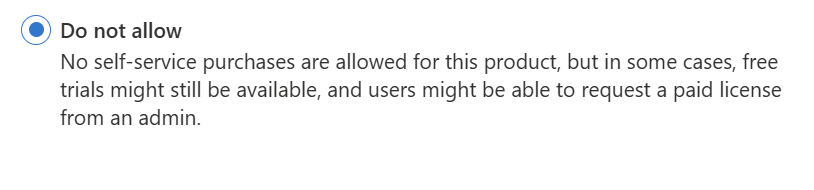
You can do this in the Microsoft admin portal, under organization settings; https://learn.microsoft.com/en-us/microsoft-365/commerce/subscriptions/manage-self-service-purchases-admins?view=o365-worldwide#use-the-microsoft-365-admin-center-to-allow-or-block-self-service-purchases-and-trials
This prevents employees from unnecessarily using programs within the Microsoft landscape.
Cleaning up guests
More than six months ago, Microsoft implemented a change that prevented guests from being managed by SharePoint/OneDrive. The result is that a guest is created in your Entra ID for every document you share. This change had particular advantages in terms of the use of sensitivity labels, for example.
It also led to more guests to manage in your Microsoft 365 environment. Do you not yet have a policy for managing these guests? Then when you open the Entra portal, you will see many guests.
How to deal with these guests? Develop a guest policy by means of an access review. By ‘cleverly’ setting up this access review, you can ensure that only active guests still have access to your data and organization. In this blog, I will take you step-by-step through how to set this up (it is in Dutch, but I am happy to help if you have any questions about it); Meer gasten in je omgeving | Wat nu? Een van de mogelijkheden
Settings for the Microsoft 365 search function in combination with Copilot
There are two ways to prevent sites and the information they contain from appearing in Copilot answers. Each method has its own advantages and disadvantages. I will explain them below.
Exclude sites from responses at the site level
You can also exclude sites from search results at the site level. Please note that sites to which you apply this setting will not only be excluded from Copilot responses, but will also be invisible in Microsoft 365 search bar results.
How to do this (please note that you must be the site owner/administrator)
1. Go to the SharePoint site settings (under 'Site information')
2. Click Search settings.
3. Uncheck Allow this site to appear in search results under 'Search and Offline Availability'

Exclude from answers at the organization level
You have the option to include up to 100 sites in your Copilot Search.
To do this, you need to use Powershell and be a SharePoint administrator or higher.
For users, a bar on the site indicates that this information is not included in Copilot's answers. Get started; Restricted SharePoint Search Admin PowerShell Scripts - SharePoint in Microsoft 365 | Microsoft Learn
Using templates within Microsoft 365
A useful but sometimes unknown feature within Microsoft 365. As an administrator, you have the option to make templates available within Word, Excel, and PowerPoint.
The advantage is not only that you or an employee can manage these templates from a central location without further IT adjustments, but also that files open in a template extension. This prevents template files from being accidentally overwritten.
Making templates available within the Office applications requires some configuration work. In short, you use PowerShell to designate a document library in SharePoint as ‘the central template location’. Within 24 hours, employees will find the published templates in the Office application under the ‘New’ button.
The exact technical steps you need to take can be found here (You need a SharePoint administrative role to perform this action and some experience with PowerShell); Create an organization assets library - SharePoint in Microsoft 365 | Microsoft Learn
A few important things to keep in mind:
• Make sure the SharePoint site is accessible to everyone (with read permissions).
• Make sure the documents are saved in the library with the correct extension so that they are visible to employees.
• Make sure you document which site you have used as the ‘template site’.
These are just a few things to keep in mind so you don't make the same mistakes I did.
You can also add these templates to the ‘new’ button in SharePoint/Teams. Here's how to do that.
Go to the SharePoint site, click on the New button, then you will see a ‘+ template’ button. As a site member, you can then add a template, which will appear under the ‘New’ button. It's that easy!

Under the ‘New’ button, you will also see options for selecting templates. You can do this under the ‘Edit new menu’ button. This button also allows you to remove any templates you have added.
This can be done not only by administrators, but also by regular site member.
The difference is that currently you only make the templates available on one site, whereas with the organization library you make the templates available to everyone.
The end
As we wrap up this journey through what it means to be an administrator in the Microsoft environment of 2026, I hope I’ve been able to show how every setting, feature, and management capability ultimately serves one purpose: empowering the people who use the technology every day. When we keep employees at the heart of every decision, the environment becomes not just manageable, but meaningful.
Thank you for joining me on this exploration. I wish you all a successful, inspiring, and truly beautiful year ahead.
Cheers to making 2026 our most productive and people-focused year yet!


Opmerkingen